Posts

Showing posts with the label linux

Convert e-books to txt

Image
If you want to convert e-books to plain text ( txt ) on linux or other Unix-like systems, here are some command-line utilities that you can use along with their terminal commands: File type Text conversion utilities Examples .djvu 1. djvutxt 2. ebook-convert 1. djvutxt input.djvu output.txt 2. ebook-convert input.djvu output.txt .epub 1. epub2txt 2.  ebook-convert 3. unzip 1. epub2txt  input.epub > output.txt 2. ebook-convert input.epub output.txt 3.  unzip  -c input.epub > output.txt .doc 1. catdoc 2. textutil  (macOS) 3.  ebook-convert 1. catdoc input.doc > output.txt 2. textutil -convert txt input.doc -output output.txt 3. ebook-convert input.doc output.txt .pdf 1. pdftotext 2.  ebook-convert 1. pdftotext input.pdf output.txt 2. ebook-convert input.pdf output.txt NOTES: There is a caveat for  unzip : the generated...

UnicodeEncodeError: 'ascii' codec can't encode character

Image
UnicodeEncodeError : 'ascii' codec can 't encode character ' \ U0001f6d1 ' in position 2: ordinal not in range(128) This Python error might happen if you are having problems displaying non-ASCII characters in your terminal when running a Python script. This is mainly a problem with your locale settings used by your terminal. I provide two solutions to resolve it: Solution #1 : change your locale settings (best solution) Solution #2 : export  PYTHONIOENCODING=utf8  (temporary solution) Solution #1: change your locale settings (best solution) The best solution consists in fixing your locale settings since it is permanent and you don’t have to change any Python code. Append ~/.bashrc  or  ~/.bash_profile  with: export LANG = "en_US.UTF-8" export LANGUAGE = "en_US:en" You should provide your own UTF-8 based locale settings. The example uses the English (US) locale with the encoding UTF-8 . The locale -a  comma...

A Raspberry Pi project about activating Darth Vader with LEDs and sounds

Image
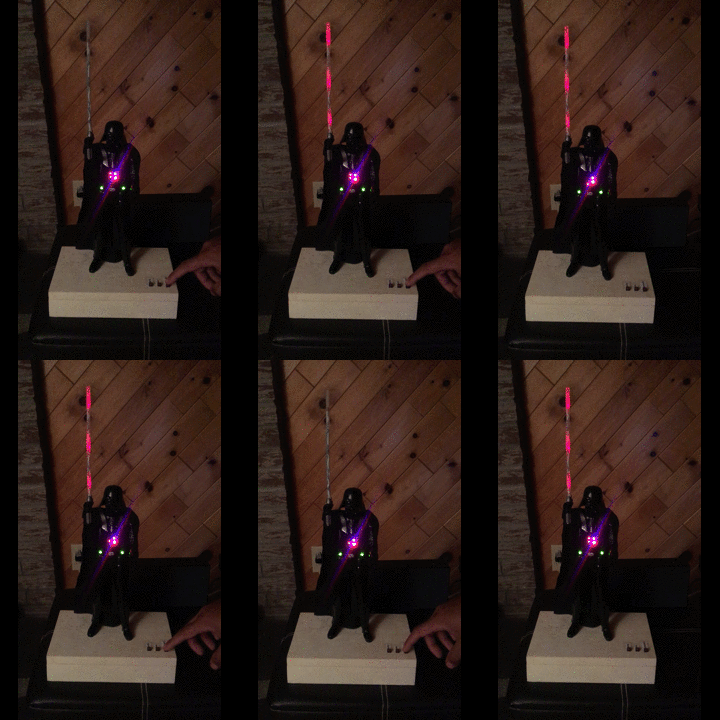
Darth-Vader-RPi is a Python-based Raspberry Pi (RPi) project about activating a Darth Vader action figure by turning on LEDs on his suit and lightsaber, and by playing sounds such as some of his famous quotes. Click on the gif to play the video The Darth Vader action figure is 11.5 inches tall (which is this one from Hasbro ) and was modified to make it more lifelike by illuminating the lightsaber, chest control box, and belt. 3 push buttons control the following sounds and LEDs: Some of his famous quotes The Imperial march theme song The lightsaber opening and retraction sounds The lightbsaber illumination (3 LEDs) His iconic breathing sound plays in the background indefinitely as soon as the RPi is run with the start_dv   script. Connection diagram Here’s how the various LEDs and push buttons are connected to the Raspberry Pi: The lightsaber is illuminated by 3 LEDs connected in parallel. The Top , Middle , and Bottom LEDs illuminate the slots in Darth Vader's chest control...

Introducing the Python library SimulRPi

Image
SimulRPi is a Python library that I wrote as part of my Darth-Vader-RPi  project. It partly fakes RPi.GPIO and simulates some I/O devices connected to a Raspberry Pi (RPi): push buttons by listening to pressed keyboard keys and LEDs by displaying blinking red dots in the terminal along with their GPIO pin numbers. The Python package pynput is used to monitor the keyboard for any pressed key. Thus, the SimulRPi library can be useful in the case that you want to try your  RPi.GPIO -based script by running it on your computer when no RPi is available at the moment. Example: terminal output Simulating LEDs on an RPi via a terminal Each dot represents a blinking LED connected to an RPi and the number between brackets is the associated GPIO channel number. Here the LED on channel 22 toggles between on and off when a key is pressed. Dependencies Platforms:  Linux, macOS Python:  3.5, 3.6, 3.7, 3.8  pynput >=1.6.8: for monitoring the keyboard for any pressed key...