Posts

Tips on publishing your Python package to PyPI

Image
  If you want to publish your first Python package to PyPI, here are some tips that might help you in avoiding some pitfalls when releasing your code to the world. Table of contents   1. Unsupported reST directives and other limitations        1.1 PyPI limitations        1.2 GitHub limitations        1.3 Limitations from all   2. Versioning your project   3.  Validate your documentation before uploading   4. Make a release   5. Publishing first to TestPyPI   6. Mistakes found in a published README   7. Remove a release from PyPI   8. Conclusion   9. Resources 10. Notes 1. Unsupported reST directives and other limitations The README.rst [ 1 ] that you painstakingly wrote for readthedocs.org [ 2 ]  might not render correctly on PyPI, nor on GitHub [ 3 ] . Here are some of the limitations that you need to look carefully for each website on which you might ...

Using pynput on macOS

Image
While working on my personal project Darth-Vader-RPi , I used the Python package pynput for monitoring the keyboard as to simulate push buttons on a Raspberry Pi. However, some keyboard keys were not detected on macOS without running the script with sudo (after adding PYTHONPATH to etc/sudoers ).  The keyboard keys that didn't need sudo were the following: alt keys cmd keys ctrl keys media buttons for play, pause, volume up/down/mute shift keys The other keyboard keys (all the alphanumeric and some special keys such as backspace and right) required the Python script to run with sudo . The pynput documentation explains the modifications you should apply to your application if you want to make it run on Linux, macOS, or Windows. Image credit:   "Apple Key"  by  Antijingoist  is licensed under  CC BY-NC-ND 2.0

A Raspberry Pi project about activating Darth Vader with LEDs and sounds

Image
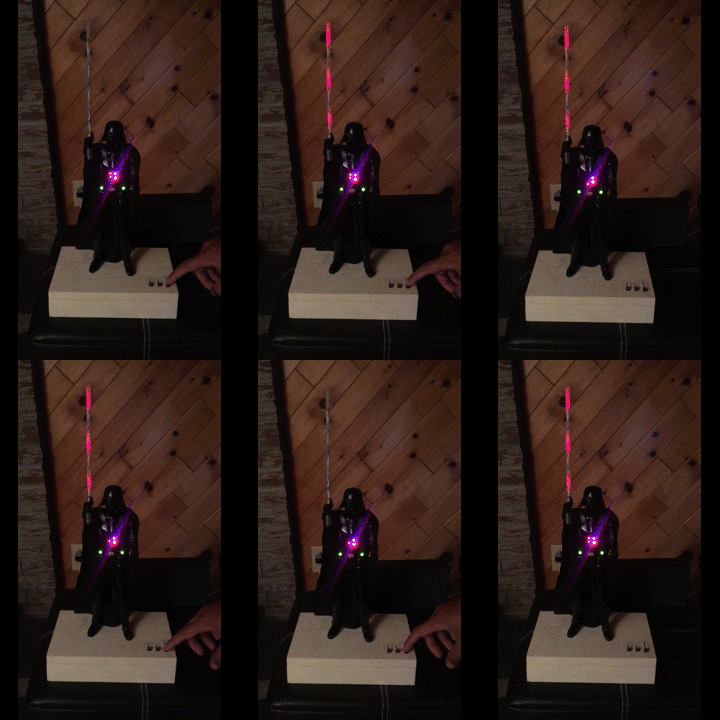
Darth-Vader-RPi is a Python-based Raspberry Pi (RPi) project about activating a Darth Vader action figure by turning on LEDs on his suit and lightsaber, and by playing sounds such as some of his famous quotes. Click on the gif to play the video The Darth Vader action figure is 11.5 inches tall (which is this one from Hasbro ) and was modified to make it more lifelike by illuminating the lightsaber, chest control box, and belt. 3 push buttons control the following sounds and LEDs: Some of his famous quotes The Imperial march theme song The lightsaber opening and retraction sounds The lightbsaber illumination (3 LEDs) His iconic breathing sound plays in the background indefinitely as soon as the RPi is run with the start_dv   script. Connection diagram Here’s how the various LEDs and push buttons are connected to the Raspberry Pi: The lightsaber is illuminated by 3 LEDs connected in parallel. The Top , Middle , and Bottom LEDs illuminate the slots in Darth Vader's chest control...

Introducing the Python library SimulRPi

Image
SimulRPi is a Python library that I wrote as part of my Darth-Vader-RPi  project. It partly fakes RPi.GPIO and simulates some I/O devices connected to a Raspberry Pi (RPi): push buttons by listening to pressed keyboard keys and LEDs by displaying blinking red dots in the terminal along with their GPIO pin numbers. The Python package pynput is used to monitor the keyboard for any pressed key. Thus, the SimulRPi library can be useful in the case that you want to try your  RPi.GPIO -based script by running it on your computer when no RPi is available at the moment. Example: terminal output Simulating LEDs on an RPi via a terminal Each dot represents a blinking LED connected to an RPi and the number between brackets is the associated GPIO channel number. Here the LED on channel 22 toggles between on and off when a key is pressed. Dependencies Platforms:  Linux, macOS Python:  3.5, 3.6, 3.7, 3.8  pynput >=1.6.8: for monitoring the keyboard for any pressed key...

Deactivate conda's base environment on startup

Image
When opening a terminal session, conda activates the base environment by default. If you want to prevent this default behaviour, you have three ways: Trick #1  :  Set the auto_activate_base parameter to false Trick #2  : Add conda deactivate in your bash configuration file Trick #3  :  Comment out some part of the conda initialisation code block in your bash configuration file NOTES: I'm working with  conda version 4.7.5 and  miniconda3 (it should also work with anaconda ). These tricks also worked with  conda version 4.6.14 After installing conda 4.7, conda added this block of code in my ~/.bash_profile : This is the block of code that we will modify in the following tricks Trick #1: set auto_activate_base  to false Per conda's instructions, "if you'd prefer that conda's base environment not be activated on startup, set the auto_activate_base parameter to false". Thus, enter the following command in a terminal: c...

Conda is broken after update: No module named 'conda_package_handling'

After updating my conda version 4.7.5 with conda update conda , conda is now broken. I get the following error message when doing conda info : ModuleNotFoundError: No module named 'conda_package_handling' NOTES: I'm working with  conda version 4.7.5  and  miniconda3 After trying to reproduce this bug, I am now getting the following error message when doing conda info : OSError: dlopen ( /Users/../lib/libarchive.dylib, 6 ) : Library not loaded: @rpath/libxml2.2.dylib EDIT [2019-07-29] :  I removed the temporary solution which consisted in downgrading your conda version since I found a complete solution (from a GitHub user) that allows you to work with the latest conda version 4.7.10 and Python 3.7.3 . See the solution below. Solution: re-install conda completely WARNING: the following solution involves the copying and deletion of the miniconda3 folder. Therefore, be very careful when handling the shell commands. I am not responsible for any data...

NLTK: Text.collocations() returns ValueError

Image
Book cover from  amazon.co.uk I was trying the collocations examples from  Chapter 1 , section 3.3 Collocations and Bigrams , of the book NLP with Python and I got the following ValueError The solution came from this NLTK’s issue on their GitHub  : Open  .../nltk/text.py    with your favorite editor NOTE: in my case the file was in ~/miniconda3/envs/nlp_py37/lib/python3.7/site-packages/nltk/text.py Change lines 440 and 441 from .../nltk/text.py    with the following line: print (tokenwrap( self . collocation_list(num, window_size), separator = "; " )) Now the collocations examples are working: text4 . collocations(num = 21 ) text8 . collocations() Output: NOTE: you can play with the argument num which refers to the maximum number of collocations to print.